

How to Set Up a Google Passkey in Nigeria and Sign In Without a Password

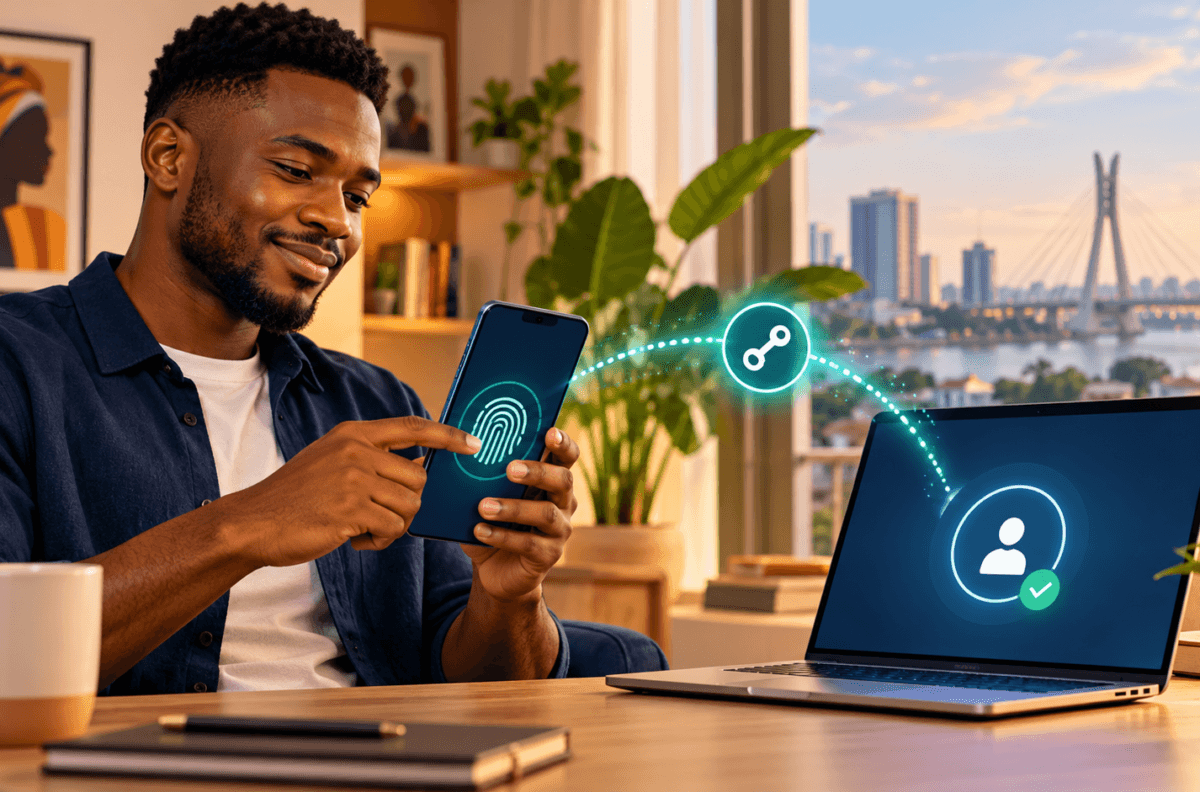
Illustration of passkey sign-in on a personal phone and computer.
A Google passkey lets you sign in with your fingerprint, face unlock or phone screen lock instead of typing a password. Here is how to set one up on a personal Android phone or computer in Nigeria, what to check first, and how to protect access if your device goes missing.
Quick steps
- Update your device and browser, and make sure your phone has a secure screen lock.
- Open Google Account passkeys and sign in to the right account.
- Choose the option to create a passkey on your current phone or computer and follow the device prompt.
- Test a sign-in, then review your recovery phone, email and other sign-in methods.
- Create passkeys only on devices you personally own and control.
What a passkey does
A passkey is a sign-in credential linked to a device or credential manager. Instead of entering a password, you confirm it is you with the screen lock already on your phone or computer. Depending on your device, that may be a fingerprint, face scan or PIN. Google says the biometric data used for fingerprint or face unlock stays on the device and is not shared with Google.
Passkeys are designed to resist phishing because they cannot be typed into a fake sign-in page like a password. They make signing in quicker, but they also make the security of the device itself especially important. Google notes that a passkey can satisfy the second step for accounts protected by 2-Step Verification because it verifies control of the device. Keep a strong screen lock and keep your recovery options current.
Check that your device is ready
Google’s current requirements include Android 9 or later, iOS 16 or later, or supported desktop systems. Supported browsers include recent versions of Chrome, Safari, Edge and Firefox. On a phone, turn on the screen lock first. If you plan to use your phone’s passkey to sign in to a computer, turn on Bluetooth on the phone. Apple users also need iCloud Keychain enabled for this flow.
These steps are the same for Google Account holders in Nigeria. You do not need a special local passkey app or to pay a third party to activate one. Your available options depend on your device, operating system, browser and Google Account settings. Check Google’s passkey requirements and setup guide if the menu or prompt differs on your device.
Create your Google passkey
- On your personal phone or computer, open myaccount.google.com/signinoptions/passkeys.
- Sign in to the Google Account you want to protect. If you use more than one account, confirm the account name before continuing.
- Select the option to create a passkey on the device you are using. Google may ask you to verify your identity again.
- Follow the screen prompt. Your phone or computer will ask you to confirm with its screen lock, fingerprint or face unlock. Complete the prompt on the device itself.
- Return to the passkeys page and confirm the new passkey appears in your account’s sign-in options.
Google can offer to create a passkey on other supported devices after the first one. You can choose which devices to add. Avoid public computers, a friend’s phone, a shared family tablet or a work device that other people can unlock. Google warns that anyone able to unlock a device with your passkey may be able to access your Google Account, even if you have signed out of it.
Use the passkey to sign in
Open a Google sign-in page, enter your email address and select the passkey prompt if it appears. Then unlock the device using its normal security method. If you are signing in on a computer with a passkey stored on your phone, choose “Try another way” and then the passkey option. Scan the QR code with your phone and approve the sign-in there; Bluetooth should be on for this nearby-device flow.
If you prefer to enter your password first, Google lets you turn off “Skip password when possible” in your Security & sign-in settings. A passkey does not delete your password or other recovery methods. Keep them up to date so you have another way back into the account if the phone is unavailable.
Protect your account if a phone is lost
Use another trusted device to open your Google Account’s passkey settings and remove the credential associated with a lost or stolen phone. Review the devices signed in to your account and sign out of anything you do not recognise. If you cannot sign in, use Google’s official account recovery process. For an Android phone in Nigeria, Google also explains how to locate, lock or erase a lost device in its lost-device guidance.
Do not share a verification code, password, recovery code or screen lock with someone claiming they can restore a passkey for a fee. Use only Google’s account pages and prompts. If you receive an unexpected sign-in alert, review it from your Google Account directly rather than following a link in an unsolicited message.
Frequently asked questions
Is a Google passkey available in Nigeria?
Google’s instructions are account and device based rather than country-specific. If your account, operating system and browser meet Google’s requirements, you can create one from the passkeys page. The options you see can vary by device.
Does a passkey replace my Google password?
No. Creating a passkey does not remove your password or recovery methods. Google may make passkey sign-in the first option, but you can still choose another supported method.
Can I use the same passkey on a shared phone?
Google recommends creating passkeys only on devices you personally own and use. Anyone who can unlock a device with your passkey could access the account on it.
What if I lose the phone that holds my passkey?
Use another trusted device to remove that passkey from your Google Account, review signed-in devices and use Google Account recovery if needed. Keep a recovery email or phone number current before you need it.
READ ALSO
- How to Find, Lock or Erase a Lost Android Phone in Nigeria with Google Find Hub
- 7 Smartphone Privacy Settings Everyone Should Check in 2026