

7 Smartphone Privacy Settings Everyone Should Check in 2026

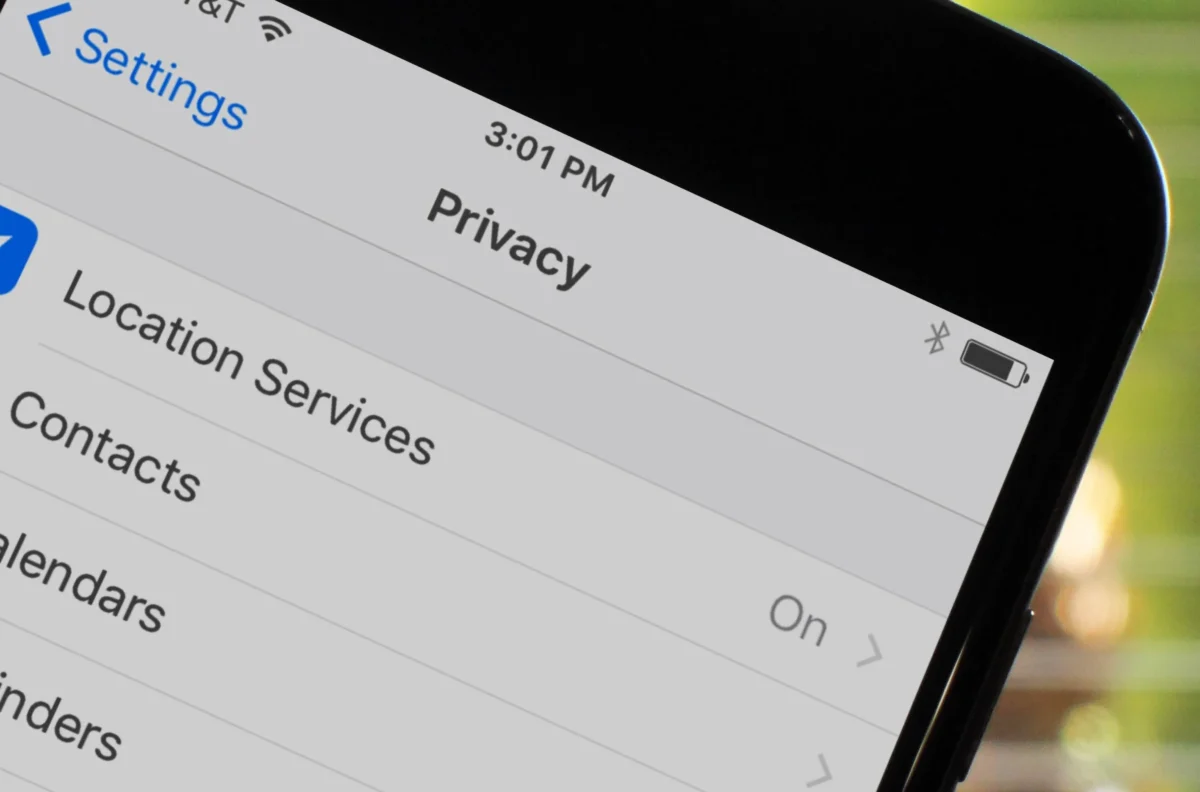
Check these smartphone privacy settings before apps get unnecessary access.
Your smartphone probably knows more about your daily life than almost any device you own.
It can know where you go, who you communicate with, which apps you use, what you search for, what you buy and, depending on your settings, what you say around it.
That does not automatically mean your phone is unsafe. The bigger issue is that many privacy settings are switched on by default or are easy to overlook after installing a new app, updating the operating system or transferring data to a new device.
As smartphones become more closely connected to artificial intelligence, location services, health information, smart devices and cloud accounts, privacy settings deserve more attention.
Here are seven smartphone privacy settings worth checking in 2026.
1. Review Which Apps Can Access Your Location
Location access is one of the most important privacy settings on a smartphone.
Many apps request access to your location for legitimate reasons, but not every app needs to know where you are throughout the day.
Check which applications have access to your location and ask whether they actually need it.
On iPhones, users can review location permissions through Settings > Privacy & Security > Location Services.
Android users can find similar controls through Settings > Location > App location permissions, although the exact wording can vary between manufacturers and Android versions.
Pay particular attention to apps that have access to your location all the time.
For many applications, allowing location access only while the app is being used may be sufficient.
2. Check Camera and Microphone Permissions
Your camera and microphone can reveal far more than a typical app needs to know.
Social media applications, video conferencing tools and messaging services may legitimately require these permissions. A calculator, game or basic utility app may have less obvious reasons to use them.
Review the apps that can access your camera and microphone.
On iPhone, these permissions can be reviewed under Settings > Privacy & Security > Camera and Microphone.
Android users can review them through the app permissions section.
Modern smartphones also provide indicators when the camera or microphone is being accessed. If an unexpected app repeatedly requests access, it is worth checking why.
The safest approach is to give access only when it serves a clear purpose.
3. Review Which Apps Can See Your Photos
Your photo library may contain much more than holiday pictures.
Screenshots can include bank information, identification documents, private conversations, addresses, tickets and other sensitive material.
That makes photo permissions particularly important.
Instead of automatically allowing an app access to your entire library, check whether you can provide access only to selected photos.
Apple and Android both provide controls that allow users to manage photo or media permissions, although the exact options depend on the operating system version and device.
Before granting full photo access, consider whether the app actually needs it.
A photo-editing app may need pictures you select. It may not need access to your entire camera roll.
4. Turn Off Unnecessary Bluetooth and Nearby Device Access
Bluetooth is useful for headphones, cars, smartwatches, keyboards and other accessories.
However, many users rarely review which apps can interact with nearby devices.
On modern smartphones, apps may request permission to discover or connect with nearby devices.
Check your installed applications and remove access where it is unnecessary.
You should also be cautious when connecting to unfamiliar Bluetooth devices, particularly in crowded public environments.
The goal is not to stop using Bluetooth. It is to make sure apps and devices have only the access they actually need.
READ ALSO
10 Digital Skills That Could Become Essential Before 2030
5. Check Tracking and Advertising Settings
Smartphones can use information about your activity to personalize advertising and other experiences.
Both major mobile operating systems provide privacy controls that allow users to limit certain forms of tracking.
On iPhone, users can review Tracking permissions under Settings > Privacy & Security > Tracking.
Android provides advertising privacy controls through its privacy settings, though the exact location can vary depending on the device and Android version.
Review these settings after installing many new apps or setting up a new phone.
It is also worth checking the privacy settings within individual social media applications because operating-system permissions do not necessarily control every type of data an app collects.
6. Review Your App Permissions After Every Major Update
Privacy settings should not be treated as a one-time task.
You may install dozens of apps over several years, and permissions can change as applications receive updates or add new features.
An app that originally needed access to your location or microphone for one feature may later introduce additional functionality.
Take a few minutes every few months to review permissions.
Look particularly for:
- Location
- Camera
- Microphone
- Contacts
- Photos and videos
- Bluetooth or nearby devices
- Calendar
- Health information
- Local network access
If an app has permission that you no longer use, revoke it.
Deleting apps you no longer need can also reduce the amount of software with access to your device.
7. Strengthen Lock Screen and Notification Privacy
A strong passcode is one of the simplest protections on a smartphone.
But the lock screen itself can reveal sensitive information even when the phone is locked.
Notifications can display messages, authentication codes, emails and other private information.
Check whether notification previews are visible when your phone is locked.
On iPhone, users can adjust notification preview settings so that message content is hidden until the device is unlocked.
Android devices also offer controls for sensitive notification content on the lock screen, although the exact settings vary by manufacturer.
You should also use a strong device passcode rather than an easily guessed number.
Biometric security such as Face ID or fingerprint authentication can add another layer of convenience and protection.
Why Smartphone Privacy Settings Matter More in 2026
Smartphones are increasingly becoming the central hub for personal information.
They connect to banking apps, social networks, health platforms, smart home devices, work accounts and cloud storage.
The rise of AI-powered features adds another reason to pay attention to privacy settings. Depending on the device and service, AI features may interact with information stored on the phone or in connected accounts.
That does not mean users need to disable every modern feature.
It means understanding what information a feature can access and deciding whether that access is appropriate.
Privacy is easier to manage when permissions are reviewed regularly rather than only after something goes wrong.
How Often Should You Check Your Smartphone Privacy Settings?
A full privacy review every few months is a reasonable habit, especially if you frequently install new apps.
You should also review your settings when:
- You buy a new phone
- You install many new applications
- You update your operating system
- You notice unusual permission requests
- You stop using an app
- You sell or give away your device
- You connect your phone to a new ecosystem of smart devices
A few minutes spent reviewing permissions can help prevent unnecessary access to personal information.
Frequently Asked Questions
What smartphone privacy settings should I check first?
Start with location, camera, microphone, photos, contacts and notification permissions. These settings can give apps access to highly personal information.
How do I know which apps have access to my location?
Both iPhone and Android allow users to review location permissions by app. You can usually choose options such as always, while using the app, ask every time or never, depending on the operating system and app.
Should I allow every app to access my location?
No. Location access should depend on what the app actually needs. An app that does not require location-based functionality may not need permission.
Can apps access my microphone without permission?
Modern iPhone and Android systems use permission controls for microphone access. Users can review which apps have been granted access and revoke permissions they no longer want to provide.
How can I stop private messages appearing on my lock screen?
Change your notification settings so message previews are hidden while the phone is locked. The exact steps vary between iPhone and Android devices.
Should I give apps full access to my photos?
Not necessarily. If an app only needs certain images, use a limited or selected-photo permission where your device provides that option.
How often should I review app permissions?
Checking every few months is a useful habit. You should also review permissions after installing many new apps, updating your phone or noticing an unusual permission request.
Does turning off ad tracking stop all data collection?
No. Limiting advertising tracking does not necessarily stop an app or service from collecting all other types of information. Review the privacy settings inside individual apps as well as the main smartphone settings.
What is the most important smartphone privacy setting?
There is no single setting that protects everything. A strong passcode combined with careful control of location, camera, microphone, photos and notifications provides broader protection.