

How to Check and Change App Permissions on Android in Nigeria

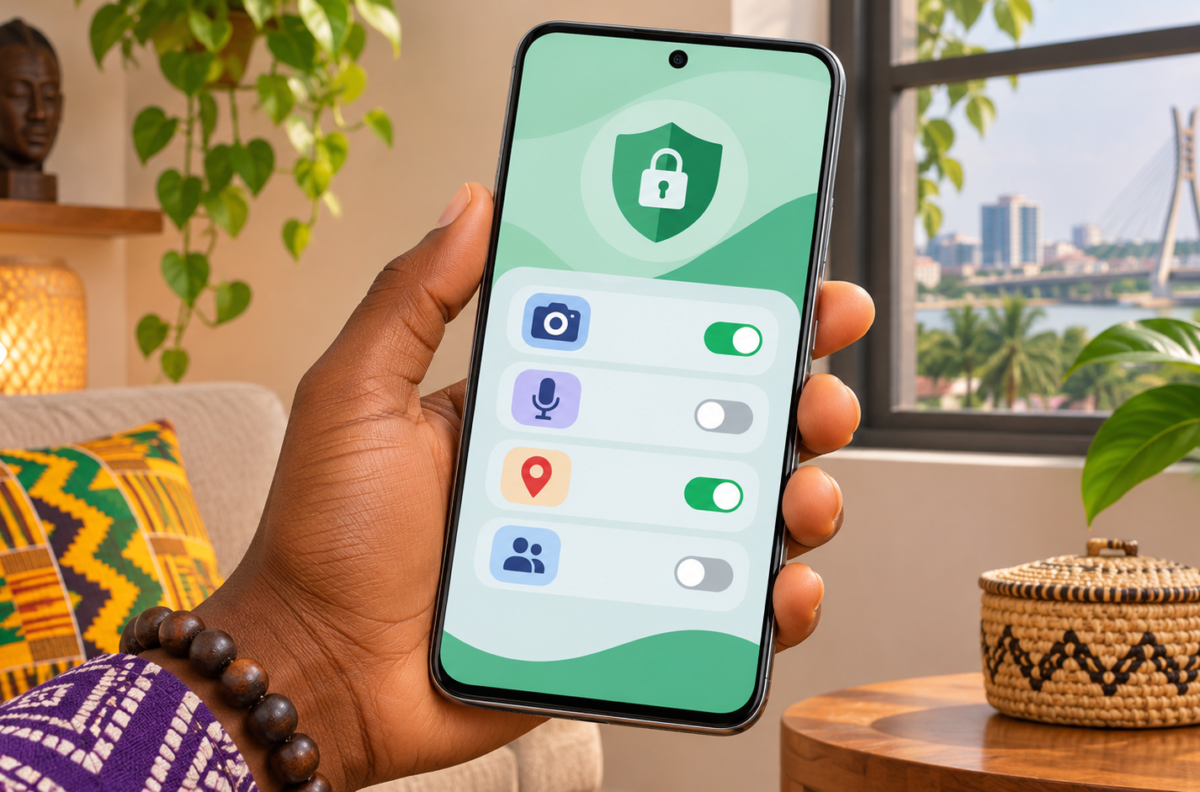
Standfirst: A quick review of camera, microphone, location and contact access can help you keep apps working while limiting the data they can reach. Here is how to check permissions on an Android phone in Nigeria.
Quick steps
- Open Settings and tap Apps.
- Choose an app, or tap See all apps, then open Permissions.
- Tap a permission and choose an access level that fits how you use the app.
- For a history view, open Privacy dashboard in Settings, if your Android version offers it.
- Repeat for apps that can access sensitive features such as location, microphone, camera, contacts, photos or SMS.
Android apps request access to phone features for different reasons. A maps app may need location while navigation is active, while a messaging app may need contacts if you choose to find people in your address book. Reviewing these settings helps you decide whether each permission still makes sense for the way you use the app.
Review one app at a time
On most Android phones, open Settings → Apps, select an app and tap Permissions. If it is not visible, choose See all apps first. Google’s Android permission guide says you can change an individual permission by opening it and selecting an available option, such as Allow or Don’t allow.
Menu names can vary by phone maker, Android version and software update. If your screen uses different labels, search Settings for “permissions” or check the phone maker’s support page for your model. This guide describes Android settings; menu labels can differ on Samsung, Tecno, Infinix, Xiaomi and other devices sold in Nigeria.
When Android offers choices, use the narrowest option that still lets the app do what you need. For location, that may mean allowing access only while the app is open or choosing approximate location where available. Some versions let you allow access once or ask each time for camera, microphone or location. Not every app or phone shows every choice.
Use Privacy Dashboard to check recent access
Android’s Privacy Dashboard can show which apps accessed certain permissions and when. Open Settings, then look under Security and privacy or Privacy for Privacy dashboard. Select a permission, such as location or microphone, to see the apps listed and adjust an app’s access.
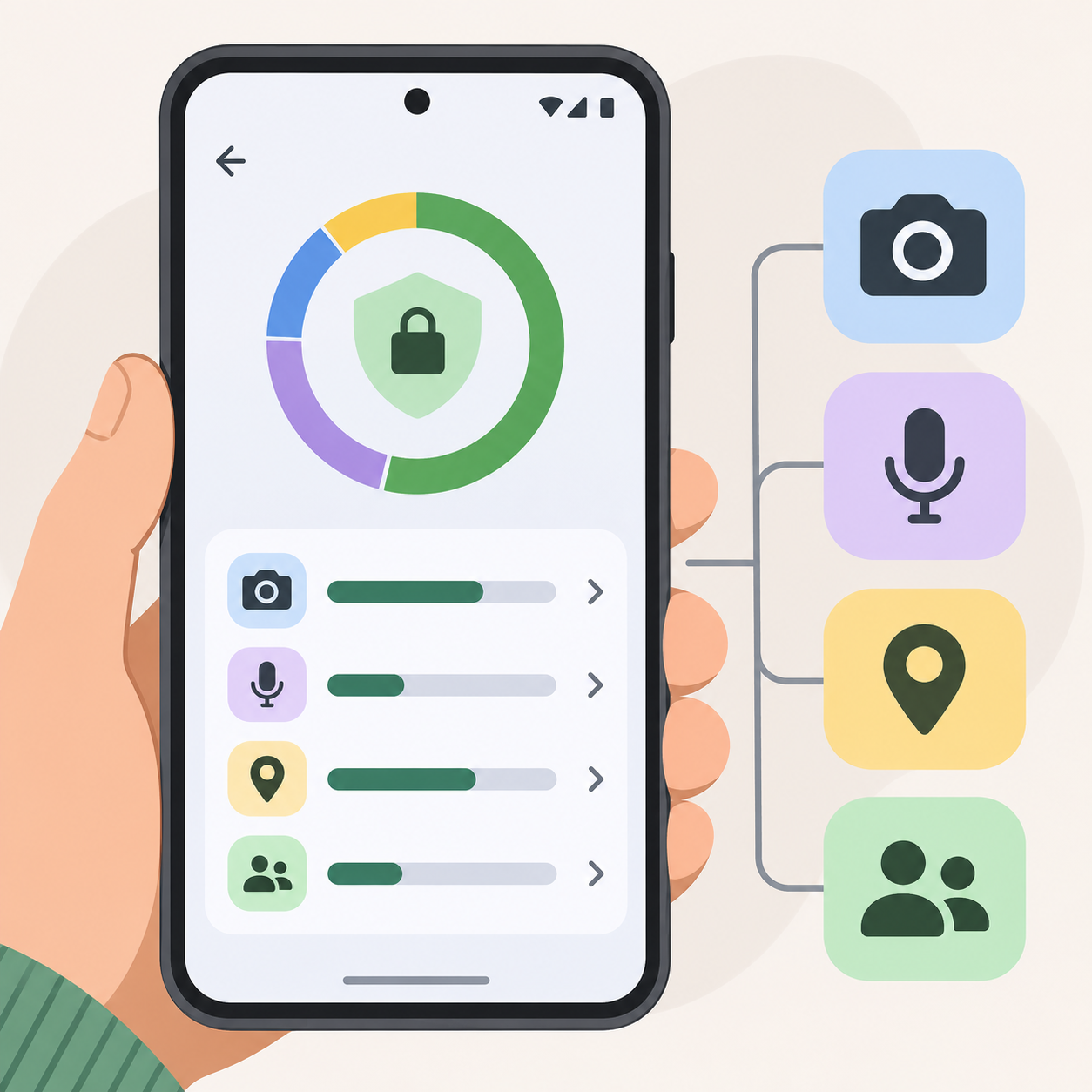
Google’s Privacy Dashboard instructions note that the dashboard is available on supported Android versions, and the activity window depends on the version: the guide describes the last seven days on Android 13 and the last 24 hours on Android 12. If you do not see the dashboard, open each app’s Permissions page instead. The dashboard is a useful check, but it does not replace reviewing permissions for apps that you rarely open.
Choose permissions based on the app’s job
Ask what a feature does before leaving access on. A video-call app may need microphone and camera access during a call. A ride-hailing app may need location for pickup and trip tracking, while a photo editor may need access to selected pictures. An app’s purpose can change, so a permission that once seemed useful may no longer be necessary.
Turning off a permission can limit a feature. For example, a social app might not upload a photo until you grant photo access, or a voice note may not record without microphone access. If an app stops working as expected, return to its Permissions screen, enable only the access needed for that task, and try again. You can change your choice later.
Android also offers an option to pause activity or remove permissions for apps you have not used for a while. Google’s permission guide explains where to find Pause app activity if unused under an app’s settings on supported versions. This can be useful for an app you want to keep installed but rarely open. Check the setting occasionally because app updates and Android releases can change menu locations.
When to remove an app
A permission list alone does not prove that an app is unsafe. Some apps need particular access to provide the features you choose. If you cannot understand why an app requests a permission, the developer does not explain its use, or the app keeps asking for access unrelated to its purpose, deny the request while you investigate. You can also uninstall an app you no longer use. Avoid installing an app from a link in an unsolicited message; use a trusted app store and check the developer name before installing.
For account protection, pair this check with a strong screen lock and account security. See our guides to How to Set Up a Google Passkey in Nigeria and Sign In Without a Password and How to Secure Your WhatsApp Account and Recover It After a Hack in Nigeria.
Frequently asked questions
Can I turn off every permission for an app?
You can deny permissions that Android lists, but some features may stop working until you allow the access they need. You can change the setting again at any time.
Why can’t I see Privacy Dashboard?
Availability and menu names depend on Android version and the phone maker’s software. Try searching Settings for “Privacy dashboard” or review permissions from Settings → Apps → [app] → Permissions.
Does revoking a permission delete my files or account?
Changing a permission controls an app’s access to a phone feature. It does not by itself delete your account. The app may ask for permission again if you use a feature that needs it.
What should I do if an app stops working?
Check its permission page and allow only the access needed for the feature you are using. If the request still seems unrelated, contact the app developer through its official support channel or remove the app.
READ ALSO:
- How to Set Up a Google Passkey in Nigeria and Sign In Without a Password
- How to Secure Your WhatsApp Account and Recover It After a Hack in Nigeria