

Europass CV: how to create, save and update it

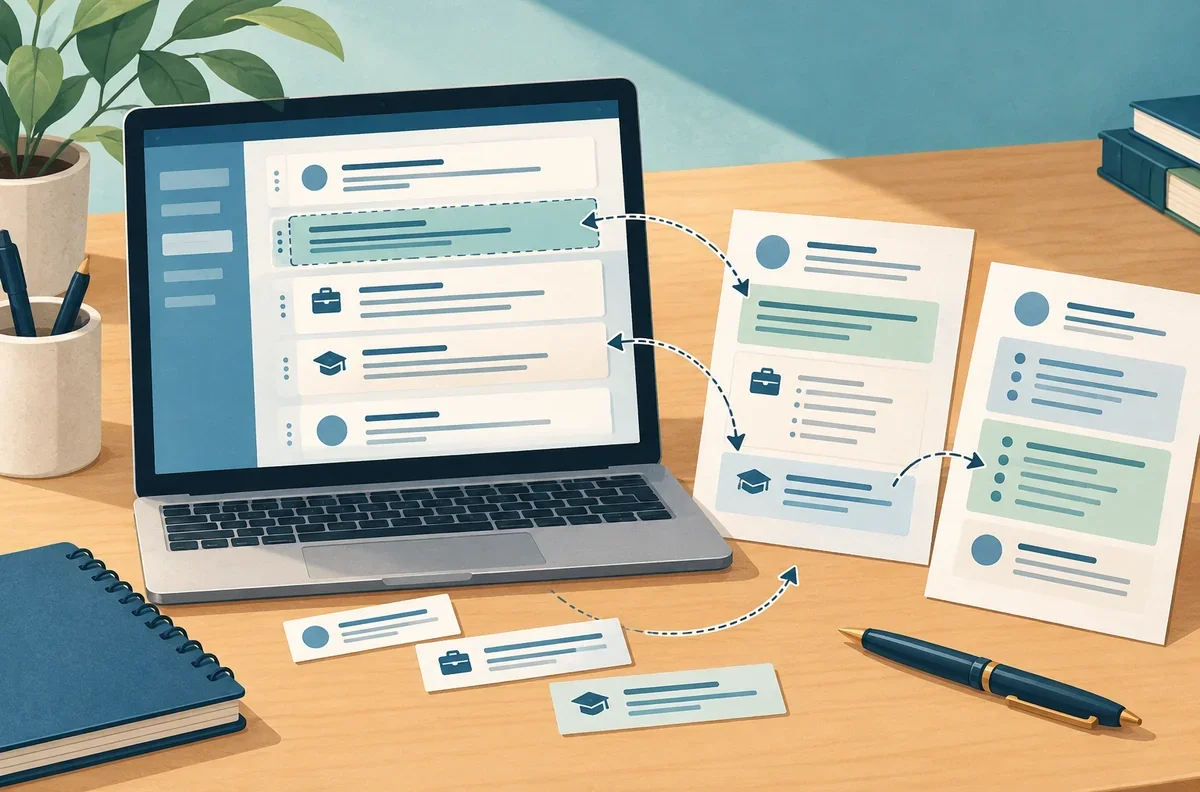
Original AI-generated illustration for CrispNG. Fictional CV layouts and interface, not an official Europass template or screen.
A Europass CV can be created free of charge through the European Commission’s online tools, including by people living outside Europe. As of 28 October 2026, the official editor offers a route without signing in, alongside options to start from a saved profile or an existing Europass CV.
The Europass access FAQ confirms that nationality and country of residence do not restrict use of the service. Its tools help prepare documents for jobs, study, training and volunteering; the requirements of the particular application still matter.
Choose a guest session or a saved profile
Europass distinguishes a profile and CV. The profile holds a broad record of education, skills, employment and achievements. A CV uses selected information from that record for a particular job or course.
Guest users can create and download a document without maintaining a permanent account. Registered users can store versions in their Europass Library and return to edit them. Registration uses the European Commission’s EU Login service, according to the access FAQ.
The official service FAQ says Europass has no hidden charges or paid premium service. The Commission’s service will not ask for bank details or payment to supply a CV.
Build a Europass CV for one application
Start with the vacancy or course instructions. Europass’s CV writing guidance recommends selecting relevant evidence, tailoring the About Me section and putting the most recent experience first. A complete career record can stay in a profile while each submitted CV contains the parts that fit the application.
Use specific tasks, skills and achievements you can explain. Check dates and job titles against your records, then remove detail that distracts from the work being advertised. Before sending a document, proofread its spelling and make sure the contact information works.
Some organisations require additional online information. CrispNG’s UNESCO internship guide explains one programme’s separate candidate-profile requirements. Prepare the CV alongside the actual application instructions.
Save the PDF so you can update it later
The access FAQ specifies Europass PDF as the CV export format. Registered users can keep documents in the Library; guests can download them to a computer or mobile device and later import their Europass CV into the editor to make changes.
Keep that downloaded file somewhere you can find again. The FAQ says guest-profile information remains available for 48 hours after the last visit. Treat the local PDF as the copy you will retain, rather than relying on a guest session to preserve the work.
You can produce different versions and change their layouts. Name each saved file clearly for the role or course, so a later revision does not leave you sending the wrong version.
Control what you share
The Commission’s personal information guidance says users decide whom to share profile information and files with, and for how long. It advises checking the recipient’s identity and keeping sensitive information, such as health details, out of the profile.
Documents placed in the Library are separate from the CV itself. The service FAQ says uploaded files are not automatically included in a CV; registered users can share selected documents through a link and choose its viewing duration. Review both the CV and any linked documents before sharing.
How to create and download your CV
- Choose your starting point. Open the official CV editor. Select Start from scratch for an empty document, or use the profile or existing-CV option. If the beta-builder choice appears, select Use the standard CV builder to follow this route.
- Enter the relevant details. In the CV editing tool, choose the document language and date format, then complete the required fields and relevant sections. The standard editor marks required fields with an asterisk.
- Choose a layout. Continue to Select template in the standard CV editor. Review the order and content of the sections against the application you are preparing.
- Keep a downloadable copy. Use the Save stage in the Europass CV editor and download the PDF. Registered users also have Library storage; retain the version intended for this application.
- Reopen for later changes. Return to the official CV editor and choose Start by uploading a Europass CV. Import the saved Europass file, make the changes and download the revised document.
What we don’t know yet
The official overview lists 31 languages, while some FAQ pages list 29. Check the live editor for the language you need. The FAQ also confirms that Europass does not translate the personal information already entered in a profile or document.
For a technical problem, use the Europass helpdesk instructions. Record the page address, date and time, language, device and browser, and whether you were using a guest or registered account.
Sources
- European Commission: Create your CV
- European Commission: Access and saving FAQ
- European Commission: Profile and sharing FAQ
- European Commission: Profile and CV
- European Commission: Personal information guidance
- European Commission: Europass helpdesk instructions